
Preparing print artwork correctly: the checklist for your logo
Ideally, send your logo as a vector file (AI, EPS or PDF) at original size, with fonts converted to outlines and colours in Pantone C. For transfer printing, a pixel image with at least 200 dpi is also fine. If you only have a JPG, we will prepare it for you.
Good artwork is the fastest way to your bags. The cleaner your design is set up, the sooner the proof arrives and the better the result. The most common problems are low-quality graphics and the wrong file formats. With this checklist, that won’t happen to you.
The checklist
Tick off what applies to your file. If something is missing, that is not a problem: we check every file and get in touch before anything is printed.
- Vector file (AI, EPS or PDF) rather than a photo or screenshot
- Fonts converted to outlines or curves
- Colours specified as Pantone Solid Coated (C), CMYK for transfer printing
- Lines at least 0.375 mm, gaps at least 1 mm (embossing 3 mm)
- Original size (1:1), the design fits the bag’s print area
Check your logo straight away: upload your logo in the configurator. The editor shows the Pantone colours it detects and marks lines and gaps that are too thin in red.
Screen printing and transfer printing compared
| Point | Screen printing | Transfer printing |
|---|---|---|
| File format | vector data preferred (AI, EPS, PDF) | vector data or pixel image |
| Fonts | converted to outlines or curves | converted to outlines or curves |
| Colours | spot colours in Pantone Solid Coated (C) | CMYK |
| Resolution of pixel images | not suitable, will be vectorised | at least 200 dpi, better 300 dpi |
| Size | at original size (1:1) | at original size (1:1) |
| Finest lines | at least 0.375 mm (1 pt) | at least 0.375 mm (1 pt) |
| Finest gaps | at least 1 mm (3 pt) | at least 1 mm (3 pt) |
For embossing, lines and gaps must be at least 3 mm.
Which file works?
Vector data, can be enlarged to any size without loss of quality.
For transfer printing with at least 200 dpi at original size. For screen printing we vectorise.
Too small or blurred. Please send us the original file or ask your agency.

Vector or pixel: the difference
Vector files are best because they consist of lines and areas instead of pixels. That is why the edges stay sharp even when greatly enlarged. A pixel image develops jagged steps along its edges when enlarged.
How do you recognise a vector file? It is usually an AI, EPS or PDF file from a graphics program. If you zoom right in, the edges stay sharp. A logo from an email signature or a website, on the other hand, is almost always a pixel image.
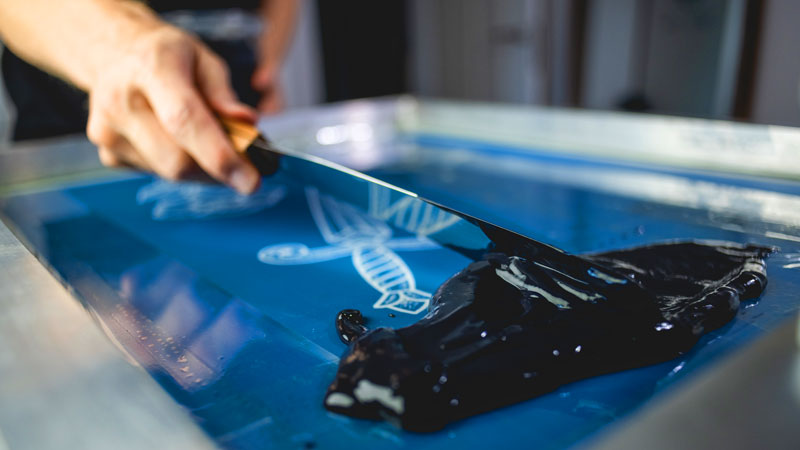
Screen printing: what matters
- Pantone colours: specify every print colour as a Pantone C colour, so your logo matches your corporate colour.
- Dark bags: here we first print a white underbase so that the colours stand out.
- Silver and gold: on cotton they lose their shine without an underbase.
- Photos and gradients in screen printing: possible as four-colour halftone printing, with at least 200 dpi at original size and a print sample. Colours look different on cotton than on paper. For photos we usually recommend transfer printing.
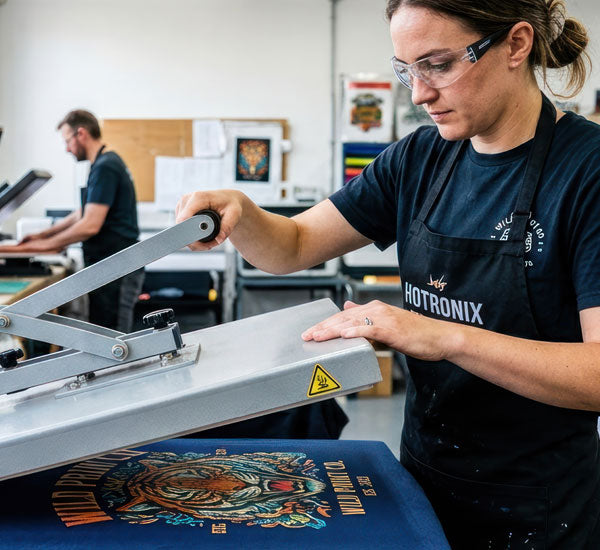
Transfer printing: what matters
- Resolution: at least 200 dpi at original size, better 300 dpi.
- Clear edges: the design needs a clear boundary. Softly fading edges are not suitable.
- Delicate designs: the smaller and finer a design, the less surface it has to adhere to and the less hard-wearing the print.
How to send us your files
- In the configurator: upload your design directly when you order. In the editor you place it on the bag, set the size and see the Pantone colours detected. The editor marks lines that are too thin in red.
- By email: files up to 10 MB to info@joytex.de.
- Large files: via a service such as WeTransfer.
No print-ready file? No problem
Our graphics service vectorises pixel logos, adds text or designs your artwork from scratch. We only charge for the actual work involved. Just send us what you have. In any case, you will receive a proof for approval before printing.
Frequently asked questions
Mon to Fri from 8 am to 5 pm, by phone or email.
My logo is only available as a JPG. Is that OK?
Yes. For transfer printing, a JPG with sufficient resolution is enough. For screen printing we vectorise your logo. In the configurator you can clean up the background and colours straight away, and our prepress team then prepares it for printing.
How do I find out the Pantone colours of my logo?
They are often in your company’s style guide, or your agency will know them. Otherwise the editor in the configurator suggests matching Pantone shades, and we check them with the proof.
How large can my logo be?
The maximum print area is given for each bag in the technical data and on the print layout sketch available for download.
Is the checklist available as a PDF?
Yes, you can download our printing datasheet (PDF) here.
Can I have photos or gradients printed?
Yes, we recommend transfer printing for this. In screen printing it is possible as halftone printing with a print sample.
What happens if my file isn’t suitable?
We check every file before printing and get in touch if anything is missing. You always receive a proof for approval before printing.